Getting Started
Requirements
- Python 3.14 or newer
- uv for dependency management
- A terminal with mouse support and truecolor rendering for the best experience
Installation
Running
Or, once installed as a package:
Your first canvas
When Pixpop starts you get a single tab containing a blank canvas, with the pen tool selected and a default palette loaded.
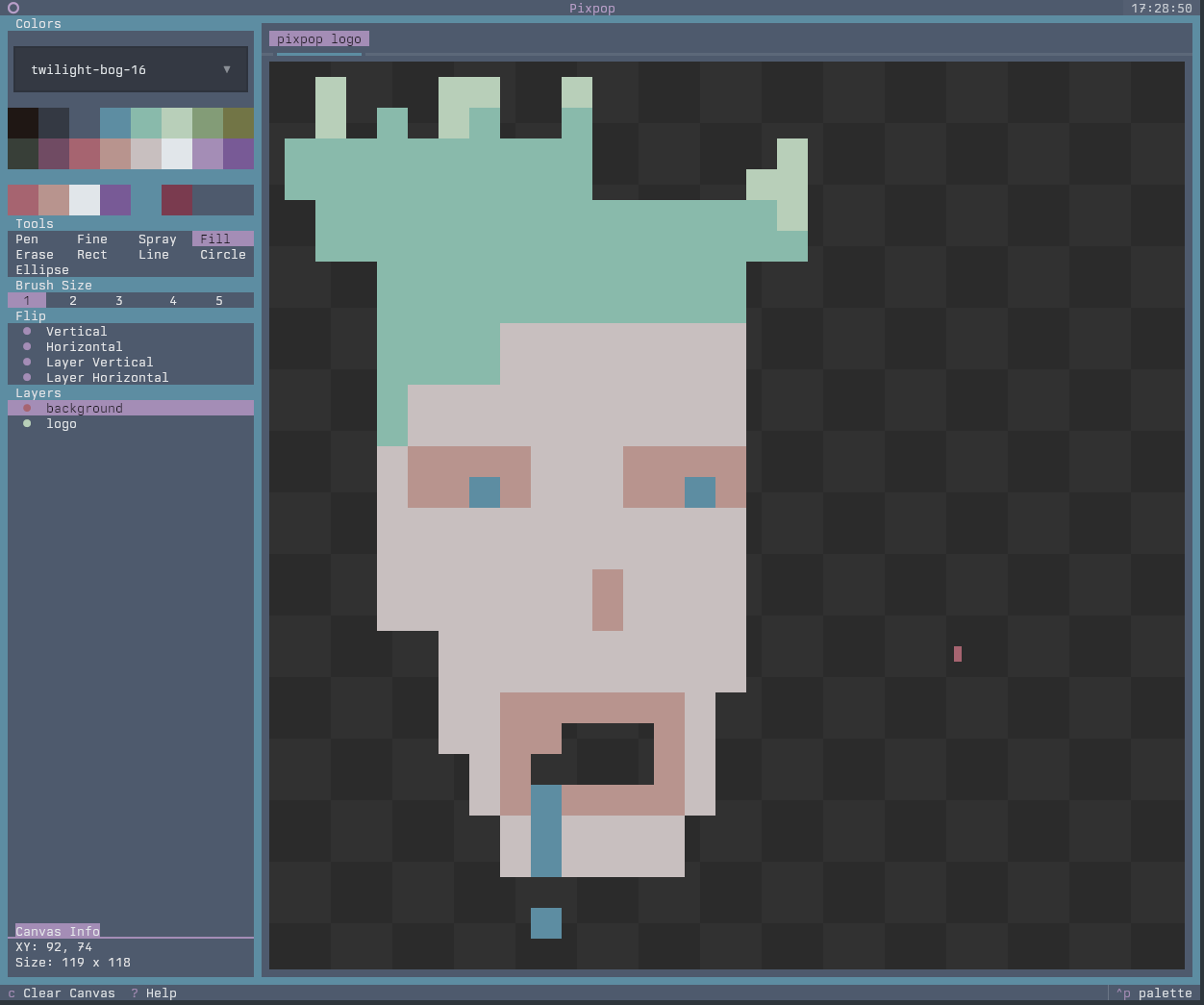
The screen is organized into a few regions:
| Region | What it does |
|---|---|
| Tabs (top) | One tab per open canvas. Switch, rename, add, or close canvases here. |
| Canvas (center) | The drawing surface. Paint with the mouse. |
| Tool picker (side) | Select the active drawing tool. |
| Brush / spray pickers (side) | Adjust brush size or spray density for tools that support it. |
| Color picker (side) | Choose the pen color from the active palette. |
| Layer picker (side) | Manage layers for the active canvas. |
A five-minute tour
- Paint something. Left-click and drag on the canvas with the default pen.
- Change color. Click a swatch in the color picker.
- Try a shape. Select the Line tool, then click-drag-release on the canvas — you get a live preview while dragging.
- Add a layer. Press /. Paint on the new layer; the layer below stays untouched.
- Undo a mistake. Press Ctrl+Z as many times as you like; Ctrl+Y redoes.
- Save your work. Press Ctrl+S and pick the
.pixformat to keep the full session (tabs, layers, undo history), or Ctrl+E to export a.pngor.ansimage. - Get help. Press ? at any time to see every keybinding.
Tip
Hover almost any button in the side panels to see a tooltip explaining what it does.
Next steps
- Keyboard Shortcuts — the complete keymap
- Drawing Tools — what each tool does
- Configuration — customize defaults via TOML